
Finding your way around this guide
How to search it, send someone a link to one part, and print an article.
Overview
This guide is part of the portal, so it always matches the version you are using. There is no separate manual to go out of date.
There are two search boxes and they do different jobs. The one in the top bar finds pages and your records. The one on these pages searches the guide itself.
When you search the guide, your words are highlighted in the results and stay highlighted in the article you open, so you can see what brought you there.
You can read it straight through if you like. Previous and Next run through the whole guide in order, not just within one topic.
Reference
| Searching the guide | Looks through everything written in the articles, including the troubleshooting entries. |
|---|---|
| The top-bar search | Finds portal pages and your own records. It does not search this guide. |
| Topics list | Open and close each topic. It remembers what you opened, and always opens the one you are reading. |
| Previous and Next | Run through the whole guide in order, carrying on into the next topic. |
| Copy link | On the article, and on every heading inside it. A heading link points straight at that part. |
| Opens everything that was folded away first, then prints just the article — no menus, and light on ink. | |
| Was this helpful? | One answer per person per article. Answering again replaces your last one. A No offers a comment box. |
| Dashed boxes | A picture we have not taken yet. The caption still tells you what it would show. |
Step-by-step
-
Search from any page of the guideUse the big box on the Help home, or the small one above the topics list. Results group by topic, and See all results opens the full list.
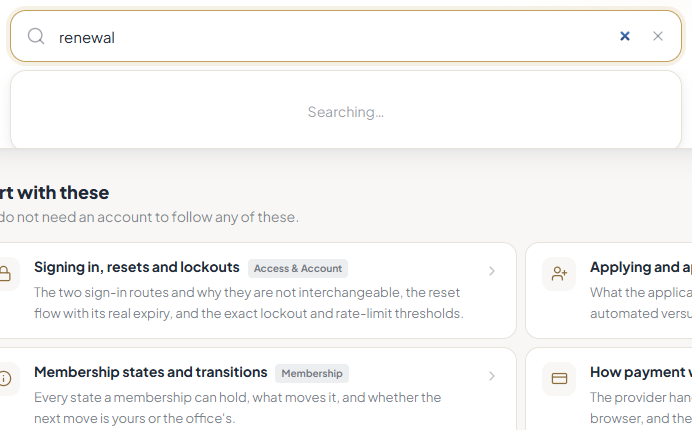
Searching the guide. -
Send someone a link to one part, not the whole articleHover a heading and use the link button next to it. That copies a link pointing straight at that part — much more use in a message than a link to a long article.
-
Print an article if you want it on paperPrint opens every folded section first, so nothing is missing from the printed copy.
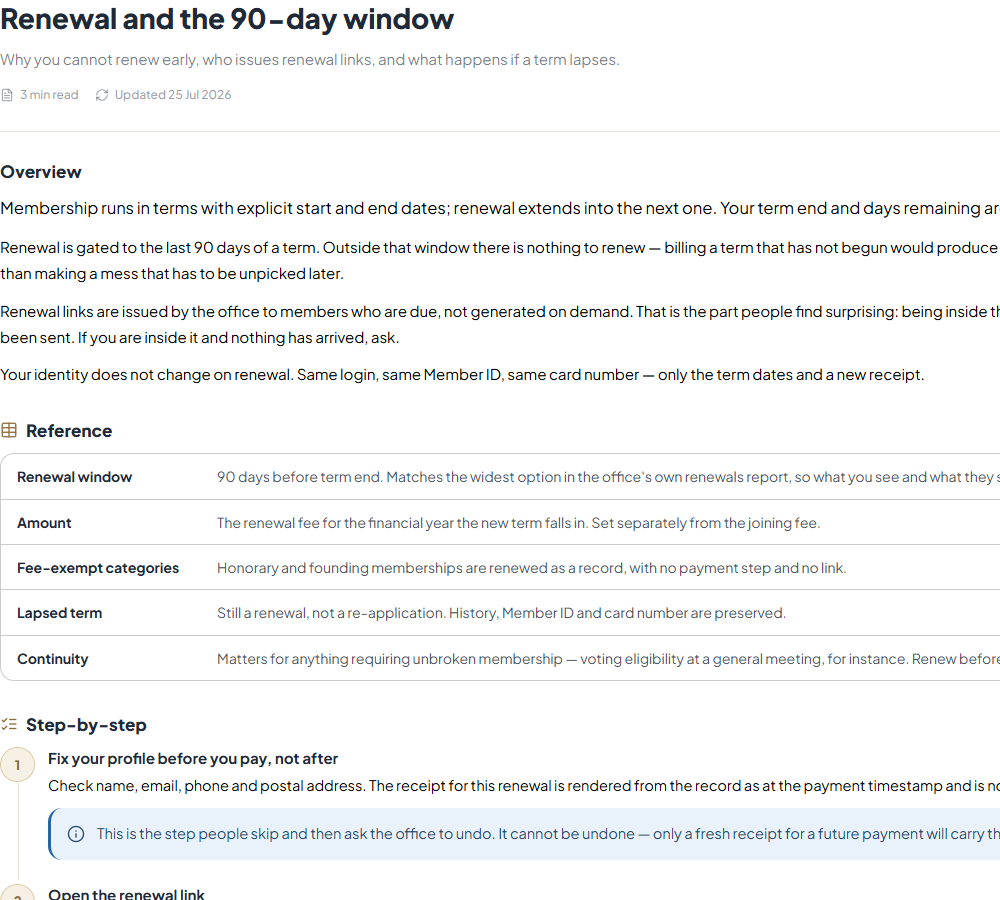
Printing an article. -
Tell us if an article helpedIt is how we decide which ones to rewrite first. If you answer No you get a box — one sentence about what you expected to find is far more use to us than the vote on its own.

Was this helpful?
Tips
Notes
Troubleshooting
The guide search finds nothing for a word you can see on the page.
Why it happens: Very common words are ignored.
What to do: Try a more distinctive word from the same sentence.
You searched the top bar for a help topic and got nothing useful.
Why it happens: That box searches the portal, not the guide.
What to do: Open Help and search there.
Copy link seems to do nothing.
Why it happens: Some browsers block copying.
What to do: It will tell you if it failed. Copy the address bar instead — it already points at the right part.
A printed article is missing its troubleshooting.
Why it happens: You printed from the browser menu rather than the article.
What to do: Use Print on the article itself. It opens everything first.