
Your details, and what you can change
What you can edit yourself, what you have to ask us about, and what changing your email affects.
Overview
Your profile is what we hold about you. It is where the name on your card and receipts comes from, and the address we use to reach you.
Most of it you can change yourself, and changes take effect straight away.
A few fields lock once you are a member — your name, mainly. Your card and receipts have already been issued with it, so we change it for you rather than letting it drift out of step. Just ask.
Your password is in the Security section of the same page. If you signed in with Google there is no password here to change.
Reference
| You can change | Your email, phone, address, photo and password. |
|---|---|
| Ask us to change | Your name and other identity details, once you are a member. They appear greyed out. |
| Never changes | Your Member ID. It is how we find you. |
| Your email address | You can change it, but be careful — it is how you sign in, and where payment links, renewal notices and receipts go. |
| Your photo | Appears on your card. There is a size limit, and photos straight off a phone are often too big. |
| Where changes show up | On your card the next time you open it. On receipts only from your next payment — we never rewrite a receipt that has already been issued. |
Step-by-step
-
Change what you need and saveThe form is grouped into personal, contact, address and security. You only need to touch the part you are changing. If something is wrong it is marked in place, and your other changes are kept.
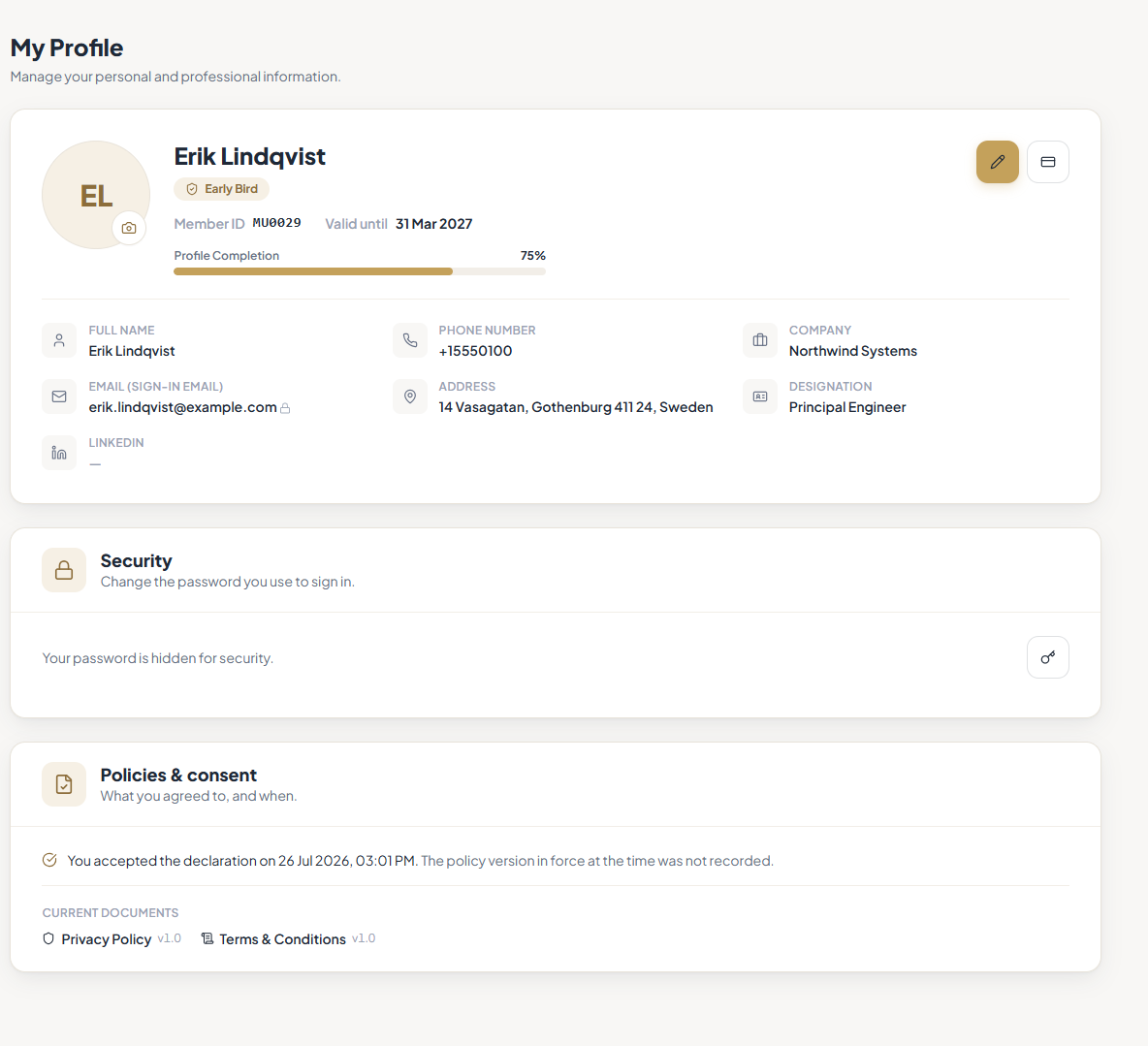
Your profile. -
If a field is greyed out, ask usThat is not a fault. Send us what it should say and your Member ID.For your phone number, pick your country from the list rather than typing a code into the number box.
-
Change your password under SecurityYour current password, then the new one twice. It applies at once, and you stay signed in on your other devices.
The Security section. -
If you change your email, make sure it works firstIt is how you sign in and where everything is sent. An address you cannot read will also lock you out of password resets.
-
Replace your photo if your card needs itDrop a file on the photo area and save. If it is straight off your phone, save a smaller copy first — phone photos are usually too big.
Tips
Notes
Troubleshooting
The field you need to change is greyed out.
Why it happens: It is one of the fields that locks once you are a member.
What to do: Send us the correction and your Member ID.
Your photo will not upload — too large.
Why it happens: Phone cameras produce files well over the limit.
What to do: Save or share a smaller copy and try again.
It says your current password is wrong and you are sure it is not.
Why it happens: Your browser is filling in an old saved password.
What to do: Type it in by hand. If it still fails, log out and reset it.
Your card still shows the old photo.
Why it happens: You are looking at a card you opened earlier, or a PDF you downloaded before.
What to do: Open the card again, and download a fresh PDF.