
Inviting people to join
The three ways you get credited, how to invite someone, and how to chase or cancel an invitation.
Overview
If you bring someone in, you get the credit for it. You do not have to rely on them remembering to mention you.
There are three ways that happens: they use your invite link, they pick your name on the signup form, or you send them an invitation by email and they take it up.
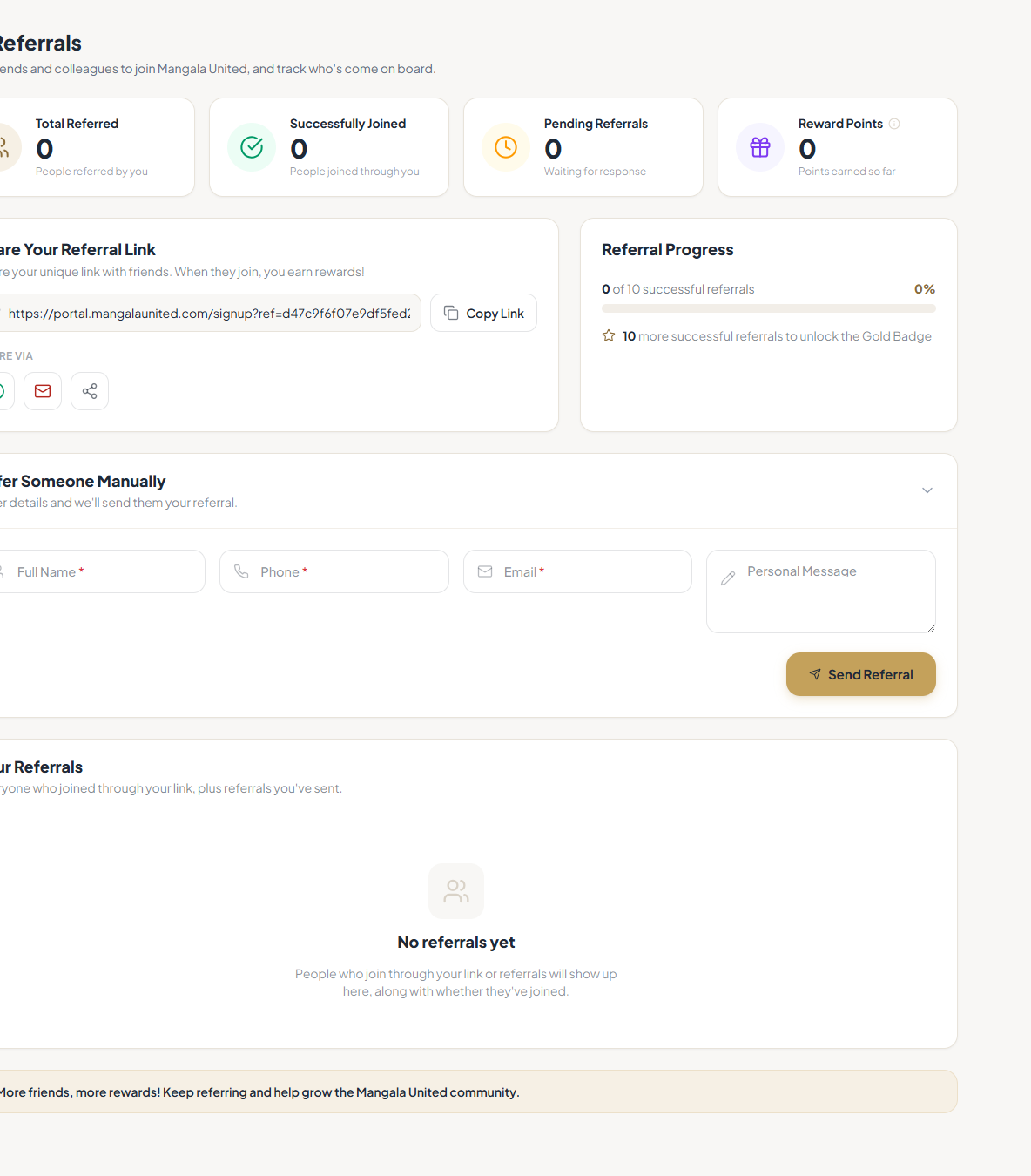
My Referrals shows everyone credited to you. Your dashboard shows the same counts.
You need to be a member to invite anyone. The invitation goes out with your name on it, so we do not send it on behalf of an account that is not a current member.
Reference
| Your invite link | Your own link, which you can copy and share. Anyone who signs up through it is credited to you. |
|---|---|
| The signup form | Someone joining can pick your name from a list. That credits you without any link or invitation. |
| Email invitation | You send it from My Referrals. You need their email, name and phone number. A personal message is optional. |
| Total | Everyone credited to you — people who joined, plus invitations not yet taken up. |
| Joined | People who are now members. Someone who has applied but not paid is not counted here yet. |
| Pending | Invited, or applied but not yet a member. |
| Reminders | One a day per invitation. If the email fails to send, that does not use up the day. |
| Cancelling an invitation | You pick a reason from a short list: wrong contact details, they asked you not to, no longer relevant, or other. |
| If they ask not to be contacted | There is a link in the invitation for that. It stops invitations from every member, not just from you. |
Step-by-step
-
Open My ReferralsIt is under My Membership. Everyone credited to you is listed, newest first, and it shows whether each person has signed up yet.
My Referrals. -
Send an invitation, or just share your linkThe form needs their email, name and phone number. If you would rather not hand over someone else’s details, share your link instead — anyone who signs up through it is credited to you.Check the email address before you send. A mistyped invitation cannot be redirected, only cancelled and sent again.
-
Remind them if it goes quietUse the Remind button on their row rather than inviting them again. That keeps them on your list once, with the original date. You can remind once a day.
-
Cancel it if you need toPick a reason from the list. The invitation disappears from your list and no more emails go out.The reason is a short list rather than a box to type in, so that nobody has to write down somebody else’s personal circumstances.
-
Watch both numbersTotal goes up as soon as you invite someone. Joined only goes up when they actually become a member — which means paying, not just applying.
Tips
Notes
Troubleshooting
It says that person has asked not to be contacted.
Why it happens: They used the opt-out link in an invitation email. That applies to invitations from any member, not just yours.
What to do: Nothing to fix, and please do not chase them about joining separately. The link is there so that people can say no.
It says that email already has an account.
Why it happens: They are already registered, even if they never finished applying.
What to do: Tell them to sign in and apply. If they have forgotten the password, they can reset it.
A reminder was refused as too soon.
Why it happens: You can send one reminder a day per invitation.
What to do: Try tomorrow. If it is urgent, just contact them yourself.
It says the invitation email could not be sent.
Why it happens: The email failed to go out. That is a mail problem, not a problem with your invitation.
What to do: The invitation is still on your list. Try Remind once. If it fails again, tell us.
Someone you referred has joined but is not counted in Joined.
Why it happens: Joined only counts people who are members now. They may have applied without paying yet.
What to do: Nothing to do. They move into Joined once they become a member, and they are already in your Total.